LogViewer

The Log Viewer component within the XCore Portal is designed to manage, categorize, and present logs from different areas and functionalities of the platform. These logs offer a comprehensive overview of all recorded system events, serving as a valuable tool for troubleshooting, price investigations, and trade investigations. Each log folder within the component provides detailed insights, making it easier for users to monitor, troubleshoot, and understand the system’s operations and activities. The logs are organized and broken down into specific categories, making it easier for users to navigate and find relevant information.
| Log folder | Description |
|---|---|
| account | This folder contains the logs related to all the XCore accounts in the system. |
| connector | The connector folder contains the logs of the give-up and drop-copy connectors and of the connection between XCore and the XCore Portal (xcontrol2), see Connector. |
| filter | The filter log contains Filtration logs detailing filtered prices and statistics. |
| maker | This folder contains the logs related to all the Liquidity Providers in the system. For each provider, the logs are split into pricing (pricing-related messages exchanged) and trading (trading-related messages exchanged). |
| stats | The stats folder contains statistics in five categories: engine, filter, maker, pool and taker, see Stats. These statistics are particularly useful in assisting with the troubleshooting of price related issues. 1. Maker: the prices received from your Liquidity Providers, with the number of quotes, the delay and the open, high, low and close prices per symbol and minute. 2. Pool: the prices aggregated in your Liquidity Pools, with the open, high, low and close prices per symbol and minute. 3. Taker: the prices streamed to your connectors, per symbol and stream, written once an hour. 4. Engine: the quote and trade activity of the engine per minute. 5. Filter: the filter prices per symbol and minute. |
| synthetic | This folder contains synthetic.log with the currency-conversion diagnostics of XCore, see Synthetic. |
| system | The system log folder contains the main logs of the system, showing a step-by-step execution of every order request received. |
| taker | The taker folder contains the logs related to all the Connectors in the system, see Taker. For each connector of type trade, the logs are split into stream (pricing-related messages exchanged) and trade (trading-related messages exchanged). |
| verify log | The verify log contains logs generated when using the verify button in the Pending Config component, indicating the potential success of new configuration changes. |
Viewing Logs
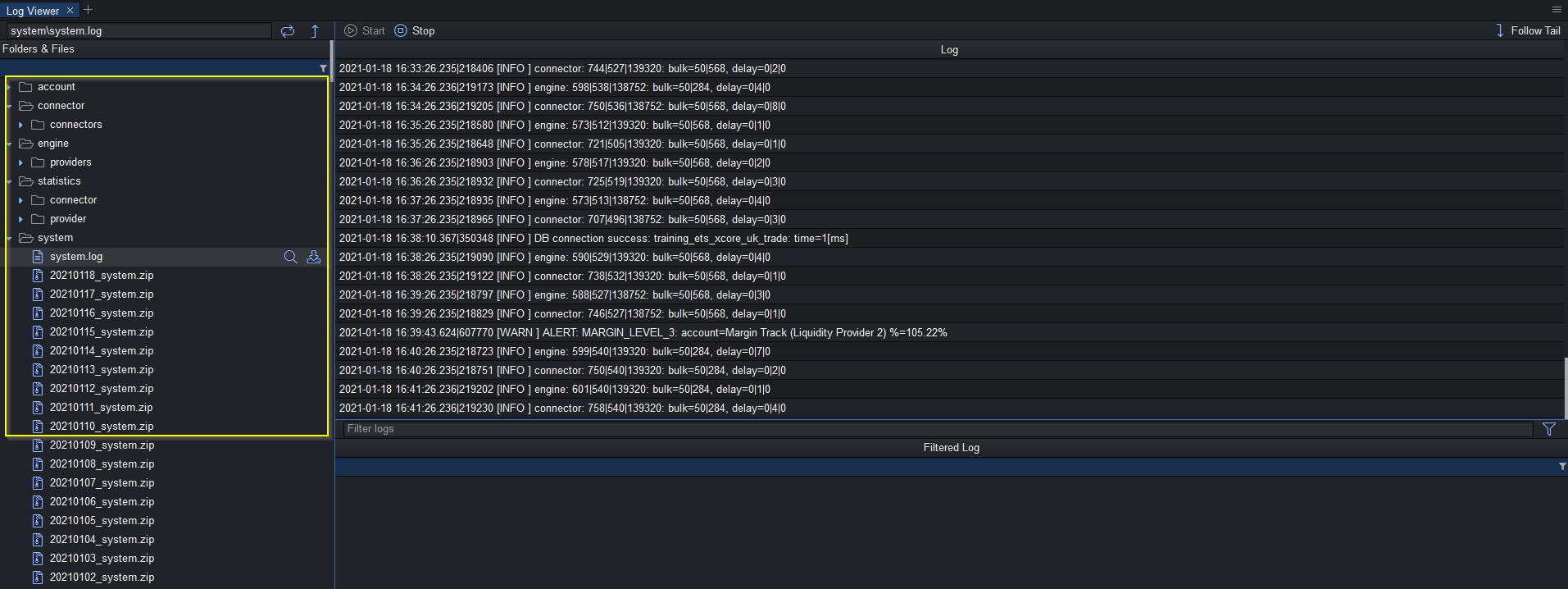
To view the logs in real-time:
1. Select the desired log folder from the left-hand side menu
2. The logs will appear in the Monitoring Log Viewer Panel on the right
Applying Filters
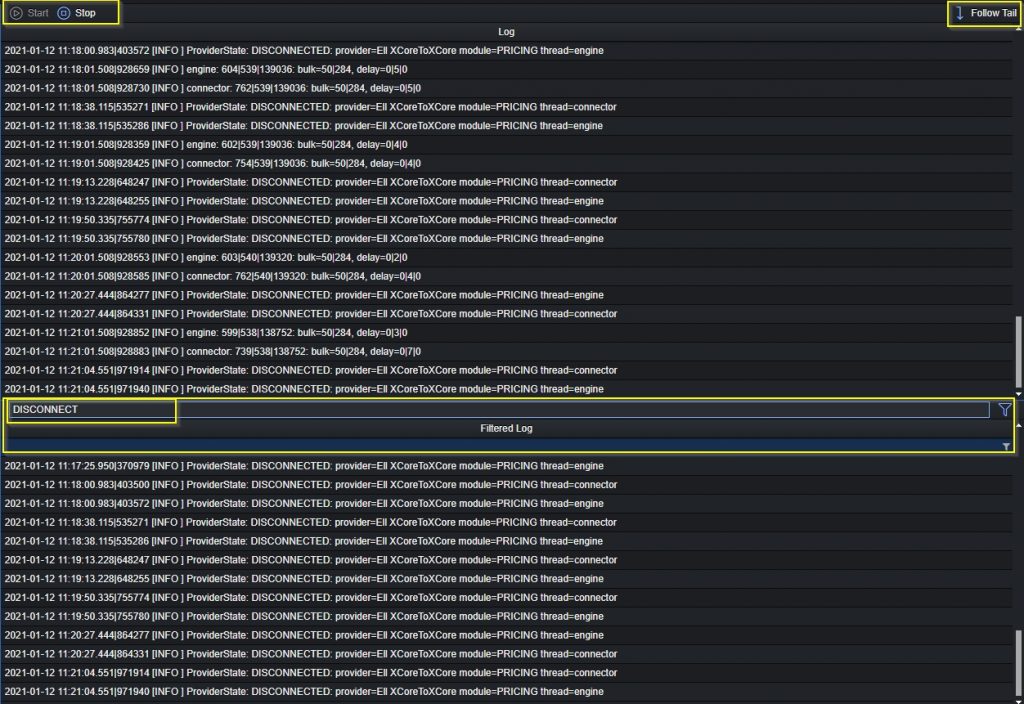
On the filtering panel you can apply filters, if needed, based on keywords and regular expressions, also the Start & Stop buttons are used when need to stop from refreshing the running logs in order to view specific lines.
The Follow Tail is used to keep the view of live logs as they are updating.
Highlighting
Highlights can be applied to help emphasize important lines in the logs. A user can define multiple Highlight rules with different settings such as matching text, case sensitivity and background or foreground colour. At any time a user may enable/disable Highlight rules.
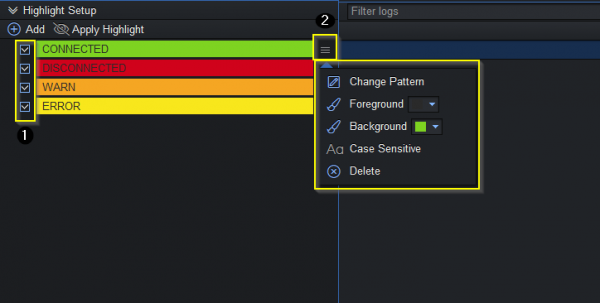
- Enable/Disable the configured highlight.
- Highlight settings
Downloading Logs
Users can access and download individual and multiple log files within the Log Viewer using the explore,  , button:
Single Download
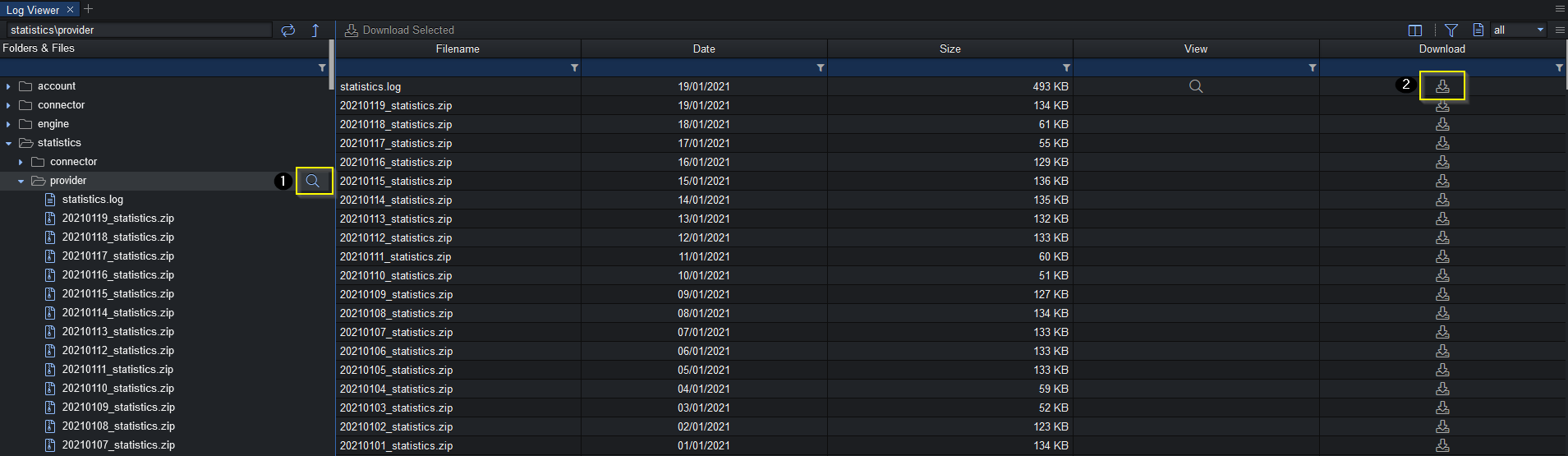
- Explore button open full selected folder.
- Download button to download single specific file.
Multiple Download
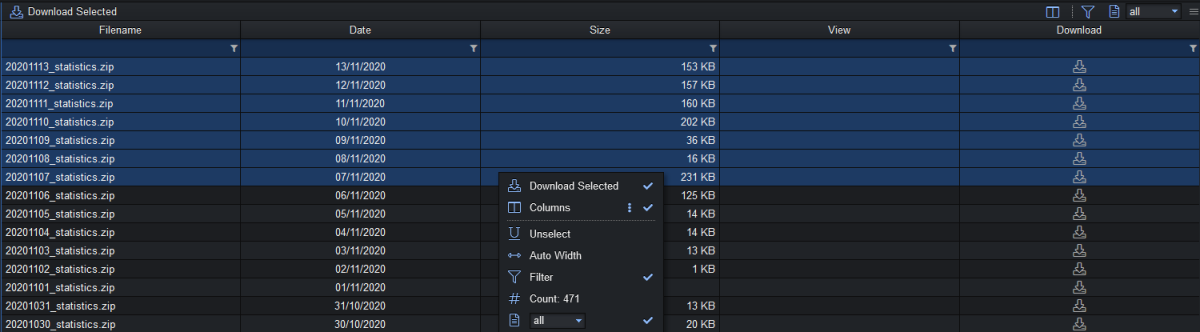
Note: In order to select and download multiple files in a row press Shift button and hold to select requested files and then right-click to Download Selected.
Once the log files have been downloaded you can use the free software KLOGG in order to easily view the logs, remove unnecessary characters, highlight information etc.
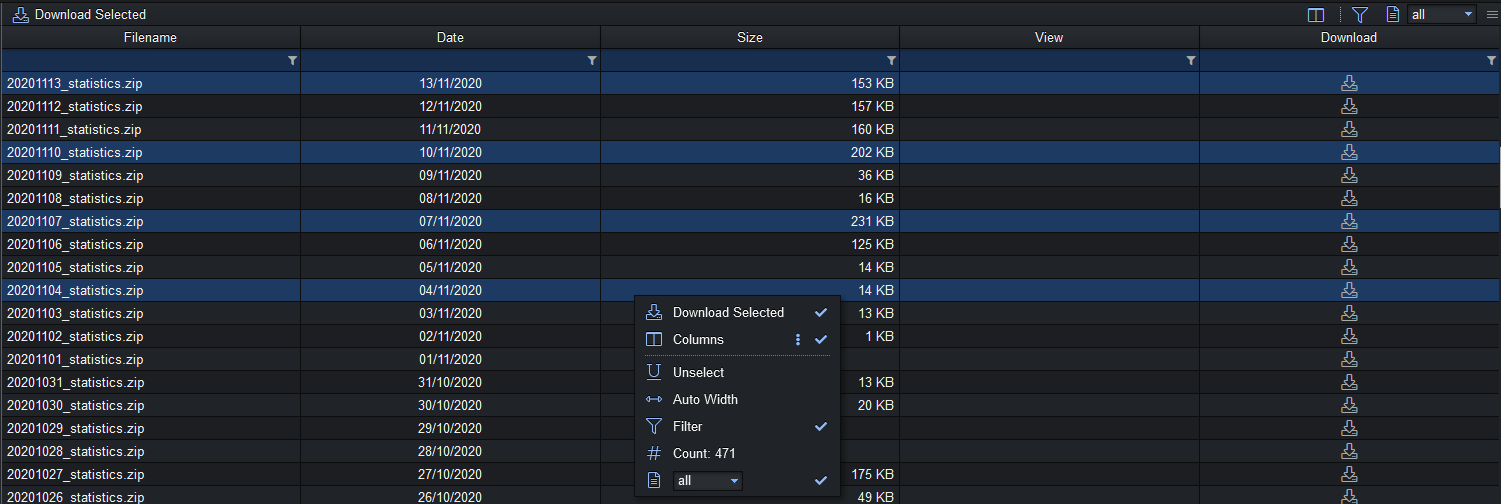
Note: In case it’s required to download only specific files in the folder press and hold the Ctrl button and select the required files, then right-click to Download Selected.
Note: In case the file is greyed out and the download button is not available, please contact PrimeXM Support.