Activity Log
The Activity Logs component allows XCore Admins to generate a real-time report of all changes made by each user on a specific XCore Instance. Admins are given detailed information on each action, including attempted logins and configuration changes, and can flexibly filter by date, user, IP address, and more.
Note: Any Admin User with access to Activity Logs will be able to see all activity for ALL INSTANCES UNDER YOUR COMPANY. For example, if your company has 3 XCores, the user can see activity for all 3 instances even if they are only included in one of those instances.
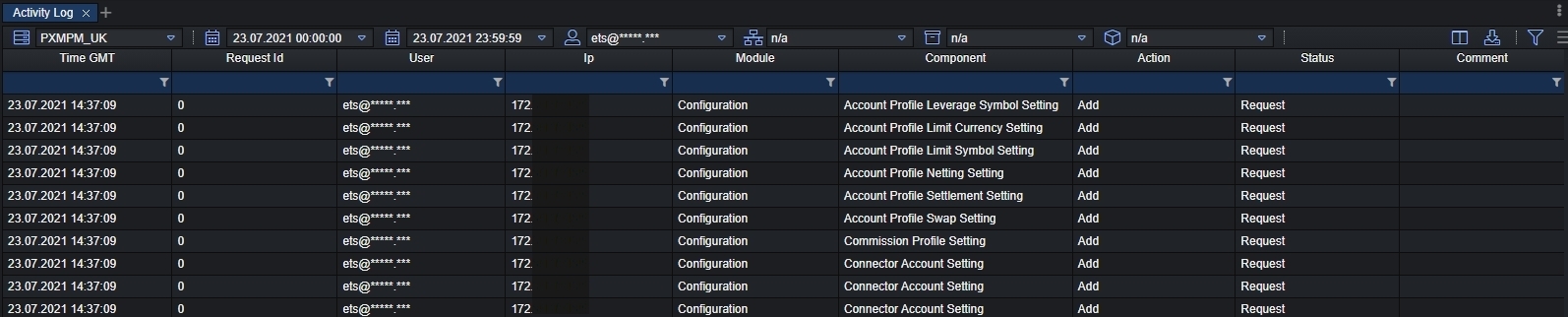
In the top panel, you can filter by:
- XCore Instance/Portal
- Specific dates
- Email address
- Specific IP
- Specific XCore Module
- Specific XCore Component
This allows the Admin user to review what changes have been performed on the XCore, by who and when to quickly identify these changes and revert to the original state if needed. For example, you can generate an activity log to review what kind of changes have been applied in case the changes were done without authorization:
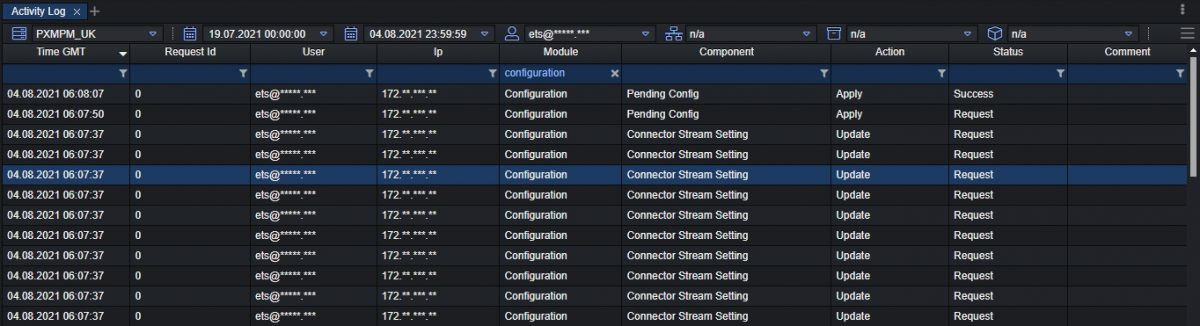
Once the Activity log has been generated, we can filter it by any column we wish to find what we are looking for quickly. For this example, we want to see changes done on the Configuration Module and specifically on the Connector Stream Setting component. By selecting and double click on the line, we can get further, more detailed information on the change that was performed, such as shown in the image below:
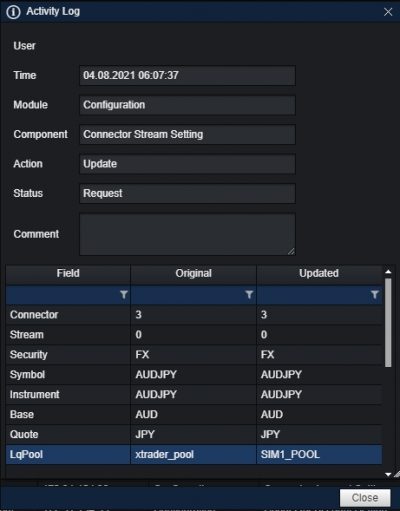
Here we can view that the user at the specific time had performed a change on the Connector Stream setting by changing the assigned Liquidity Pool on the symbol AUDJPY, where in the Original column indicating information before the change and in the Updated column, the information to which it was changed to.
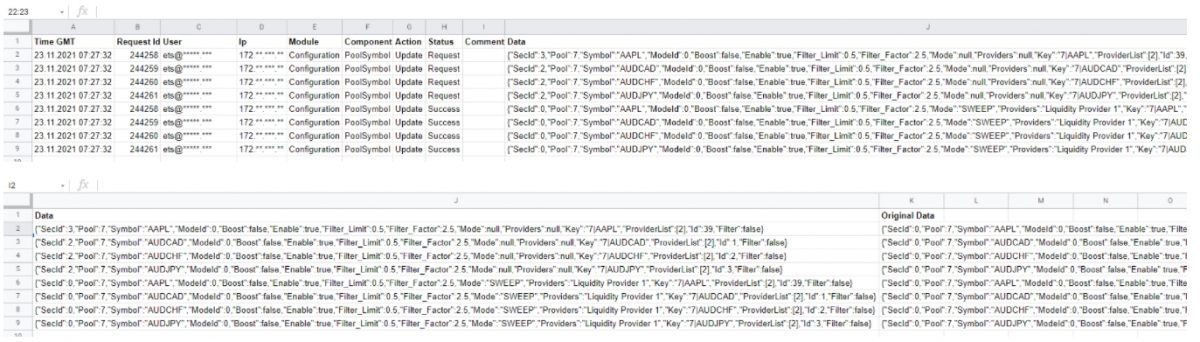
Besides viewing the Activity Log directly from the XCore Portal, it’s also possible to export the information as a .csv file and view it in Excel and share it with your colleagues if needed:

Once the file has been exported, you can view all the information presented on the GUI and additional information with data of each line which otherwise had to be opened manually one by one to check what kind of change has been performed on the specific line.
In the Excel file, you can view this information alongside the basic information on the same line under the Data and Original Data columns: