User Component Access
The User Component Access Layouts contains different components to configure User Access Group Settings in different ways accordingly to the requirements in order to allow the users to access specific Modules, Components, Columns in the XCore:
video=1109037894
Component Access
This component configures the access rights for the User Group created from the Component Access Config component.
| Left Panel | Description |
|---|---|
| Apply | Used to apply the settings to the system modified in the access field. |
| Reset | Reset/Drops the settings configured but not yet applied to the system in case a mistake occurred during configuration. |
| Top Panel | Description |
| Add | Add a new line to configure access rights settings for a User Group |
| Delete | Delete the full line of access rights settings configuration from the XCore |
| Column | Description |
| User Group | Select the User Group from the dropdown menu for which you wish to configure the access right settings. |
| Type (By) | Select from the dropdown on which level you want to assign the access group setting: - ComponentGroup: Would contain a group of multiple components grouped. - Component: Would contain the whole list of all the available components in the XCore for access permission configurations. - ItemGroup: Would contain a group of multiple items (tables) grouped. - Item: Would contain the whole list of all the available items(tables) in the XCore for access permission configuration. - FieldGroup: Would contain a group of multiple fields (columns) grouped. - Field: Would contain the whole list of fields (columns) available in the XCore for access permission configurations. |
| Value (Name) | Select from the dropdown menu specific ComponentGroup, Component, ItemGroup, Item, FieldGroup, or Field, accordingly to assign access right in the particular line. |
| Actions (Access) | Select the actions from the dropdown menu that the specific AccessGroup would be able to perform accordingly to the previous selection of the Type and Value. |
| Status | Indicates whether a line has been modified, which would require saving a row to apply the change. |
Note: The fields can be updated directly from the table by clicking on the requested cell that wishes to change the configuration, which would require pressing the Apply button for the change to become active in the system.
Component Access Config
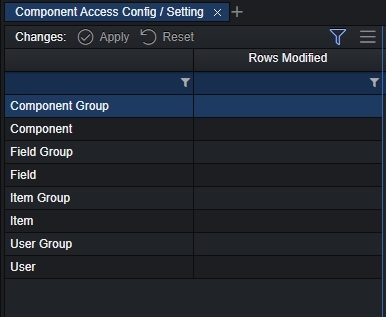
| Left Panel | Description |
|---|---|
| Apply | Used to apply the configuration to the system: - Component Group - Component - Field Group - Field - Item Group - Item - User Group - User |
| Reset | Reset/Drops the configured modifications that can be performed before Apply operation in case the settings are not needed anymore. |
The component access config setting is a combination table of separate components:
- Component Group
- Component
- Field Group
- Field
- Item Group
- Item
- User Group
- User
which are grouped to easily configure different Access Groups that can be used in the Component Access.
Note: The fields can be updated directly from the table by clicking on the requested cell that you wish to change the configuration, which would require pressing Apply button for the change to become active in the system.
Component Group
This component is used to create several different component groups to which various components can be grouped and linked.
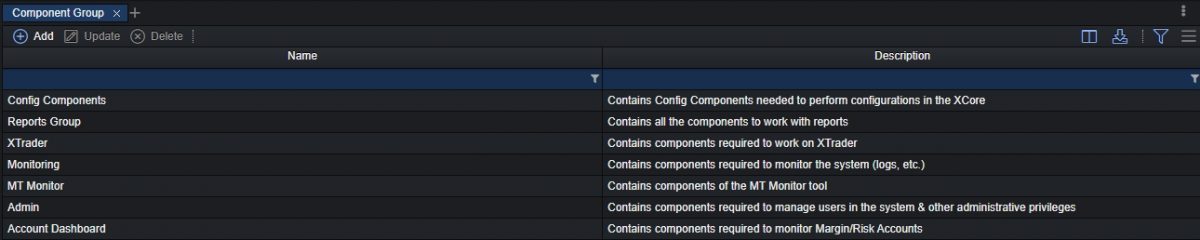
| Top Panel | Description |
|---|---|
| Add | Open a pop-up window to create a ComponentGroup giving a name and a meaningful description. |
| Update | Open a pop-up window to update the name and description of the ComponentGroup |
| Delete | Delete fully a ComponentGroup from the system. |
| Column | Description |
| Name | The name of the created ComponentGroup. The ComponentGroup will be available for use in Component Access. |
| Description | The description of the created ComponentGroup describes the purpose of the ComponentGroup. |
Component
Through the component field, we can create entries that will be assigned to Component Groups that were created previously to be used in Component Access to give specific access or deny it.

| Top Panel | Description |
|---|---|
| Add | Open pop-up window to select a component from the dropdown list and Group (Component Group) to which the component will be assigned. |
| Delete | Deletes specific entries of configuration from the system. |
| Column | Description |
| Component | The component that is configured from the list of the available components |
| Group (Component Group) | Component Group to which the component is assigned to. Note: The group can be used in the Component Access to configure access rights permissions. |
| Status | Indication in case a row has been modified and requires proceeding to Save to apply in the system. |
Field Group
Using this component the admin user can create different field group providing a name and a description to which will be able to link various fields (columns) on the XCore items (tables). Once the Field Group is configured, it can be used in the Component Access in case you need to assign access only specific fields (columns) to an Access Group to view them.

| Top Panel | Description |
|---|---|
| Add | Open a pop-up window to configure a name and a description for the Field Group. |
| Update | Open a pop-up window to update a name and description of the existing Field Group. |
| Delete | Delete an existing Field Group fully from the system. |
| Column | Description |
| Name | The name of the created Field Group, which can be used in the Component Access to configure permissions for a User Group. |
| Description | A meaningful description of the Field Group to understand what the specific groups have access to view. |
Field
The Admin user can use the field to create entries to allow or deny access on specific fields (columns) in the XCore. The fields are linked to a specific Field Group that was created previously in order then to use in the Component Access to assign access rights permissions.

| Column | Description |
|---|---|
| State | Indicates whether a specific field line was modified and requires saving to apply in the XCore. |
| Items | Indicates the list of items (tables) under which the fields (columns) belongs to. |
| Field | Indicates the list of the available fields (columns) to assign to Field Group for permissions. |
| Group | Select a specific Field Group under which a field (column) will belong to. |
Item Group
Using this component we can create item group providing a name and a description to which will be able to link different items (XCore tables) from the available items in the XCore. The ItemGroup can be used to configure access group permissions by assigning it in the Component Access.
Item Groups can be used in cases where we wish to group a number of different items (tables) of the XCore to provide a access to specific items and group them together for convenience.
Item Group/Items can be used only for the following modules in order to provide/limit actions which can be taken by the users of the specific component access groups:
- Account Module
- Configuration Module
- Admin modules
Few examples actions such Operation functionality that can be used in the Account Module, or Import, Add functionalities in the Configuration Module.

| Top Panel | Description |
|---|---|
| Add | Open a pop up window to configure a name and a meaningful description for ItemGroup. |
| Update | Open a pop up window to update a name and/or description of the ItemGroup. |
| Delete | Delete fully the ItemGroup from the system. |
| Column | Description |
| Name | The name of the ItemGroup, which can be used in Component Access in order to configure permissions for a specific Access Group in the system. |
| Description | Meaningful description of the ItemGroup to easily understand what is assigned to a specific ItemGroup. |
Items
The Items Group Member (Group Items) component contains a list of the available items (tables) in the XCore under the Account, Configuration and Reporting in order to link them to a specific Item Group if needed.
The items can be used by the Admin users in order to create entries of specific items of the XCore to be linked with Item Groups which then can be used in Component Access either provide access or deny it.
Item Group/Items can be used only for the following modules in order to provide/limit actions which can be taken by the users of the specific component access groups:
- Account Module
- Configuration Module
- Admin modules
Few examples actions such Operation functionality that can be used in the Account Module, or Import, Add functionalities in the Configuration Module.

| Top Panel | Description |
|---|---|
| Add | Open pop up window in order to create new entry for an item to link with an Item Group. |
| Delete | Delete fully the entry of item configuration from the System. |
| Column | Description |
| Status | Indicates whether a specific field line was modified and requires saving to apply in the XCore. |
| Item | Configured item (table) of the Account, Configuration or Admin modules. |
| Groups (Items Group) | The Item Group to which the item (table) is assigned to be used in the Component Access. |
User Group

This component is used in order to create User Group giving a name and a description.
| Top Panel | Description |
|---|---|
| Add | Open pop up window to create new component access user group to provide a name and a description. |
| Update | Open pop up window to update the name and/or description of the component access user group. |
| Delete | Delete the component access user group from the system. Note: In case there were users assigned to component access user group during deletion they will lose all access in the XCore, therefore reassign its users before deleting a component access user group. |
| Columns | Description |
| Name | Provide a name for the access component user group. |
| Description | Provide a meaningful description for the access component user group. |
User
The user component allows to the Admin of the XCore to create entries to assign XCore users to specific User Group, which then are used in the Component Access in order to assign accordingly access rights permissions as needed.

| Top Panel | Description |
|---|---|
| Add | Open pop up window in order to assign XCore Instance, User and User Group. |
| Delete | Delete the configured entry of user and the user group to which it was assigned. |
| Column | Description |
| State/Status | Indicates whether a specific field line was modified and requires saving to apply in the XCore. |
| Instance | The XCore Instance name/XCore Portal name. |
| User/Email | The email of XCore user. |
| User Group | The User Group to which the user is assigned to. Note: Same user needs to be assigned to one user group in order to get access rights permissions on the XCore and can not be assigned to multiple User Groups. |