PrimeXM MT4 Bridge
The PrimeXM MT4 Bridge routes MT4 order requests to XCore for execution and reports execution confirmations back to MT4.
The Bridge runs as a server-side plugin on the MT4 server.
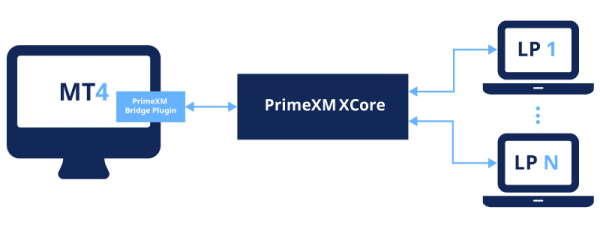
Each MT4 server requires its own Bridge deployment and corresponding license.
How to install the MT4 Bridge
This video details the steps on how to configure the PrimeXM MT4 Bridge on MT4 Server.
video=907809659
How to update the MT4 Bridge
This video details the steps on how to update the PrimeXM MT4 Bridge.
video=898167355
How to uninstall the MT4 Bridge
This video details the steps on how to uninstall the PrimeXM MT4 Bridge.
video=898171873
Setup/Update
Installation
Prerequisites
Provide PrimeXM Support with the following information to prepare the Bridge license:
- MT4 server name, as shown in the Common settings in MT4 Administrator.
- Dedicated MT4 Manager account for the Bridge plugin. This account does not require permissions or group access rights.
- DNS names or IP addresses of the primary and backup MT4 servers.
Obtain the Bridge plugin, primexm_bridge.dll, and the corresponding license, primexm_bridge.lic, before installation. PrimeXM supplies the license using the information above.
Installation Procedure
- Confirm that
primexm_bridge.dllandprimexm_bridge.lichave the same base filename. A mismatch prevents the Bridge from loading. - In Windows Services, stop MetaTrader 4 Server.
- Copy both files to the MT4 server's
pluginsdirectory, for exampleD:\MetaTrader4\plugins. - Start MetaTrader 4 Server.
- In MT4 Administrator, open Plugins. Place the Bridge at the top of the plugin list so it has priority over other plugins.
- If you changed the plugin order, restart MetaTrader 4 Server again to apply the priority change.
- If a failover or backup server is used, copy the plugin and corresponding license to its
pluginsdirectory as well.
See the MT4 Bridge installation video.
Update
- Copy the supplied update files to the MT4 server. An update may include one or more of
primexm_bridge.dll,primexm_bridge.lic, andprimexm_bridge.ini; replace only the files supplied for that update. - Back up the installed
.dll,.lic, and.inifiles to a directory outsidepluginsso the previous version can be restored if required. - In Windows Services, stop MetaTrader 4 Server.
- Replace the supplied files in the installed
pluginsdirectory, for exampleD:\MetaTrader4\plugins. - Confirm that the
.dll,.lic, and.inifiles retain the same base filename,primexm_bridge. - Start MetaTrader 4 Server.
- In MT4 Administrator, open Plugins and confirm that the Bridge is at the top of the list. Move it back to the top if required.
- If you changed the plugin order, restart MetaTrader 4 Server again to apply the priority change.
Note: A filename mismatch between the plugin, license, and configuration files prevents the Bridge from loading correctly.
Note: MT4 WatchDog synchronizes the .dll and .ini files from the primary server to the failover server. If the license is updated, manually copy the corresponding .lic file to the failover or backup server's plugins directory.
See the MT4 Bridge update video.
Uninstall
- In Windows Services, stop MetaTrader 4 Server.
- Open the MT4 server's
pluginsdirectory, for exampleD:\MetaTrader4\plugins. - Move
primexm_bridge.dll,primexm_bridge.lic,primexm_bridge.ini, and theprimexm_bridgefolder outsideplugins, or delete them. - Start MetaTrader 4 Server.
- On the failover or backup server, remove
primexm_bridge.licfromplugins. MT4 WatchDog removes the corresponding.dlland.inifiles automatically.
Note: To stop using the Bridge permanently, uninstall it completely rather than disabling the plugin in MT4 Administrator.
See the MT4 Bridge uninstall video.
Connectivity Verification
Open the Bridge log for the required date, for example D:\MetaTrader4\plugins\primexm_bridge\logs\YYYYMMDD.log.
After installation or an MT4 server restart, check the configured rules and included groups and securities:
[INFO] connect start
[INFO 0] config: name=1000: Bridge value=sec=FX;g=PXM*;acc=acc1
[INFO] including: group=PXM-1 security=FX
[INFO] including: group=PXM-2 security=FX
[INFO] connect end
Then verify the connection sequence:
connecting: host=xcorename.primexm.com:port— connection attempt started.connected: host=xcorename.primexm.com:port— network connection established.access granted: host=xcorename.primexm.com:port— access to the XCore session granted.
A failed connection attempt is recorded in the Bridge log as:
[INFO] connection failed: host=xcorename.primexm.com:port