PrimeXM MT5 Feeder
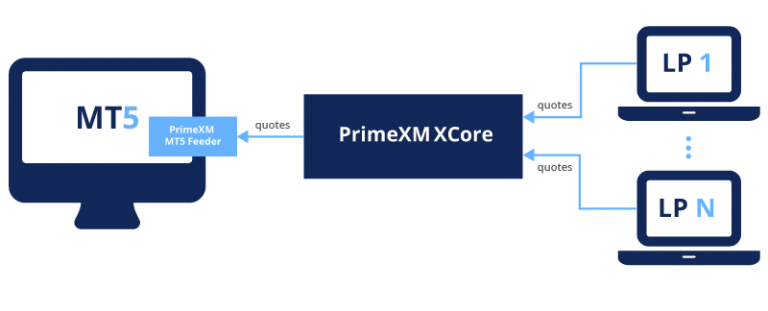
The PrimeXM MT5 Feeder receives price streams from XCore and publishes them to the MT5 server. XCore prepares these streams from liquidity provider quotes.
How to install the MT5 Feeder
video=896599233
How to update the MT5 Feeder
video=860183713
Setup/Update
Installation Procedure
Prerequisites
The following information is required to be used in the preparation of the MT5 Feeder files:
- MT5 Server Live and Backup IP needed for whitelisting the MT5 Connector in XCore.
- XCore DNS/IP Address and Pricing Port to be used when configuring the MT5 Feeder on the MT5 Server.
Installation Procedure
To install the PrimeXM MT5 Feeder, please follow the steps outlined below:
- (1) stop the MetaTrader 5 History Server from Windows Services (service name: MetaTrader 5 History Server);
- (2) navigate to the Datafeed folder of the MetaTrader 5 History Server (e.g., D:\MetaTrader 5 Platform\History\Datafeed)
- (3) create a new folder under the Datafeed folder of the MetaTrader 5 History Server (e.g., D:\MetaTrader 5 Platform\History\Datafeed\PXMFeeder64);
- (4) copy the PXMFeeder64.exe file needed for the installation into the Datafeed folder of the MetaTrader 5 History Server (e.g., D:\MetaTrader 5 Platform\History\Datafeed\PXMFeeder64\PXMFeeder64.exe);
- (5) start the MetaTrader 5 History Server from Windows Services (service name: MetaTrader 5 History Server);
- (6) if you have a fail-over/backup MT5 server, for good measure, manually copy over the PXMFeeder64.exe from the Feeder folder of the primary MetaTrader 5 server.
Configuration Procedure
To configure the PrimeXM MT5 Feeder, you will need to follow the steps outlined below:
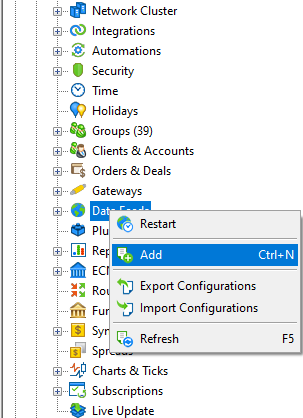
- (1) Log in to the MT5 Administrator under the DataFeed tab, right-click and select + Add to add a new feeder entry:
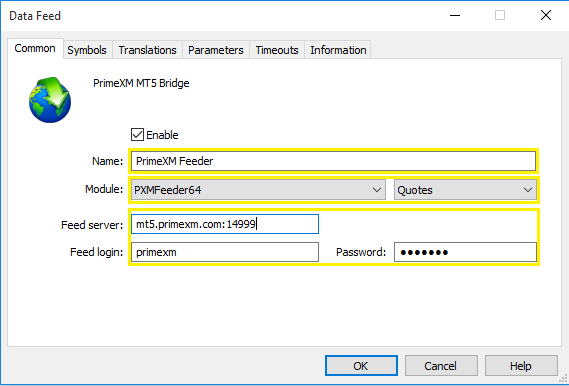
- (2) Configure the Common settings of the DataFeed as demonstrated in the example below:
- Name: PrimeXMFeeder
- Module: PXMFeeder64 (Quotes Only)
- ID: Automatically set by the MT5 Admin
- Feed Server: <Client_XCore_DNS>:<pricing port> (e.g. XCoreClientZ.primexm.com:14999)
- Feed Login: Pricing session login obtained from the MT5 Connector Config Settings component of the XCore
- Password: Pricing session password obtained from the MT5 Connector Config Settings component of the XCore
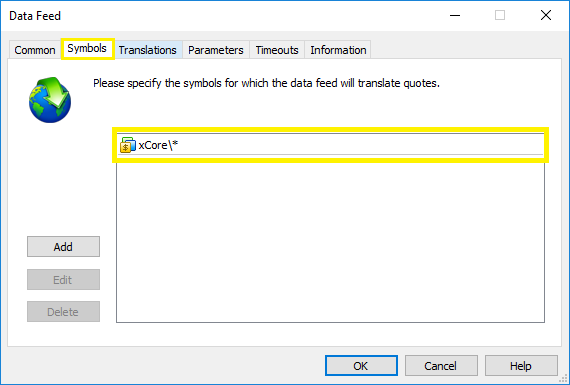
- (3) Configure the Symbol settings of the Datafeed by specifying the symbols or symbol path(s) to be intercepted and processed by the PrimeXM Feeder:
- (4) The Translations tab is for MT5 markups and should not be used for PrimeXM MT5 Feeder.
- (5) The Parameters tab is not supported in the PrimeXM Feeder and should be left blank.
- (6) Configure the Timeout settings of the Datafeed as demonstrated in the example below:
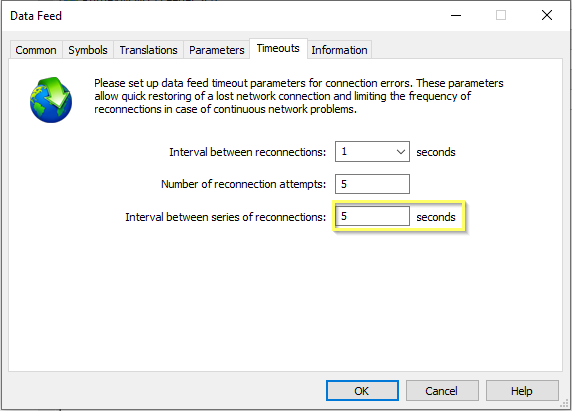
Note: ”Timeout of data receiving before re-connection” = 5 means that if the PrimeXM Feeder does not receive any price updates from the XCore for more than 5 seconds, it will automatically be disconnected in an attempt to refresh the connection.
Note: Recommended value for the ”Timeout of data receiving before re-connection” and ”Interval between series of re-connections” is 5 seconds.
Note: It is recommended that the Feeder should be at the top of the list if other Feeders exist to be prioritized first.
Update Procedure
To update the PrimeXM MT5 Feeder, you will need to follow the steps outlined below:
- (1) copy the PXMFeeder64.exe file needed for the update into the MT5 server machine;
- (2) copy the PXMFeeder64.exe file from the Datafeed folder of the MetaTrader 5 History Server (e.g., D:\MetaTrader 5 Platform\History\Datafeed) to be able to roll back in case the update fails;
- Note: The backup folder should be located outside the Datafeed folder (e.g., D:\MetaTrader 5 Platform\Backup\)
- (3) Disable the Feeder on your MT5 Administrator Platform.
- (4) update the existing PXMFeeder64 file (.exe) with the prepared new file by copying the new file in the Datafeed folder of the MetaTrader 5 History Server (e.g., D:\MetaTrader 5 Platform\History\Datafeed)
- Note: The name of the PXMFeeder64.exe file should match the name of the previously installed feeder file
- (5) Enable the Feeder on your MT5 Administrator Platform.
Uninstall Procedure
To uninstall the PrimeXM MT5 Feeder, you will need to follow the steps outlined below:
- (1) stop the MetaTrader 5 History Server from Windows Services (service name: MetaTrader 5 History Server);
- (2) navigate to the Datafeed folder of the MetaTrader 5 History Server (e.g., D:\MetaTrader 5 Platform\History\Datafeed);
- (3) copy away or delete the PXMFeeder64 folder containing the PXMFeeder64.exe from the MetaTrader 5 History Server (e.g., D:\MetaTrader 5 Platform\History\Datafeed\PXMFeeder64);
- (4) start the MetaTrader 5 History Server from Windows Services (service name: MetaTrader 5 History Server);
- (5) if you have a fail-over/backup MT5 server, for good measure, delete the PXMFeeder64 folder containing the PXMFeeder64.exe from the MetaTrader 5 History Server;