White Label Portal
The White Label component of the Admin Client module offers the ability to the admins of the instance to configure their portal in regards to the front end looking, logo that is presented all the time, Help Center redirection to a specific page which they would like to use.
Once the white label is configured the Admins have the ability to enable the preferred setup they have configured, disable the access to the Theme Designer of the portal.
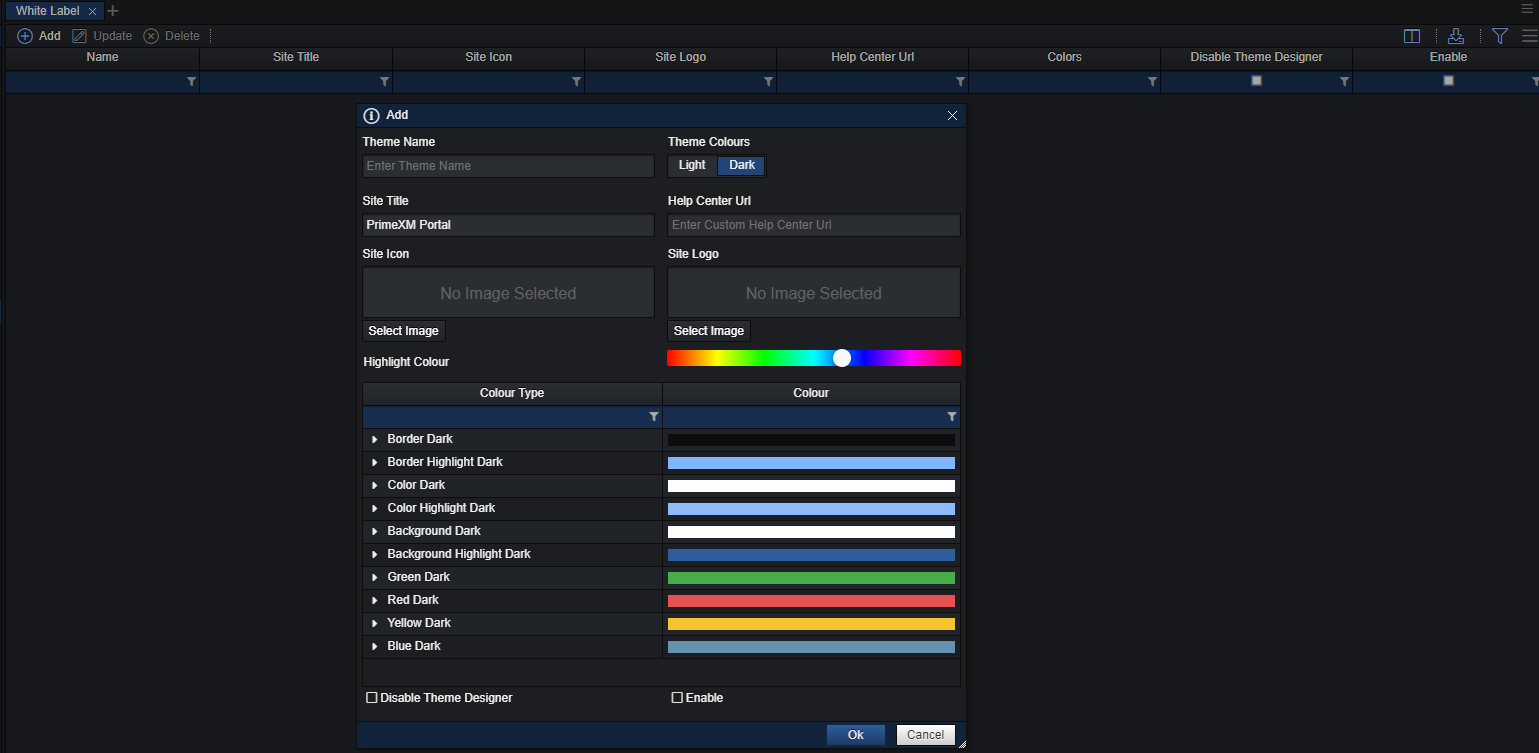
The abilities that offers the White Label Theme tool are:
- Set Dedicated Help Center URL
- Set Site Icon (Favicon)
- Set Portal Logo
- Set the Company colors for the theme
- Multiple setup of WL in order to switch quickly between them when needed
- Disable the theme designed in order to keep the users from setting their own themes
If needed you can preconfigure a number of different White Label Themes in order to switch between them when it’s required.
Note: The White Label component can only be used by the Admin Users of the portal, meaning users which have already access to the Admin Client Module.
In order to set up your own individual XCore theme which will be presented and viewed by all the users under the company first need to load the White Label component under the Admin Client module.
Press the Add button which will open the White Label wizard.
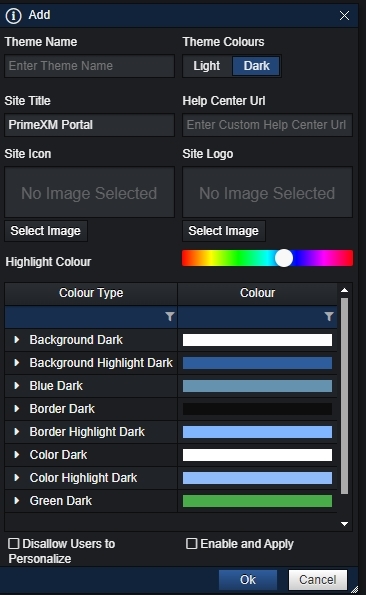
- Theme Name: The name of the specific theme which will be created and shown in the White Label component
- Theme Color: Switch between predefined white and black themes. Note that if you have configured further down the colors on the two option then when switching to another mode it will not be applied.
- Site Title: The site name which all the users of the company will see it in the tab of the browser.
- Help Center URL: You can set your own dedicated website to which the users will be redirected whenever they press on the Help Center button. The default redirection page is set to PrimeXM Help Center page.
- Site Icon: The site icon (favicon) which will be visible in the browser tab section next to the Site Title defined previously.
- Site Logo: The logo of your choosing which can be set and will be presented in the top left corner in the instance.
- Highlight Color: The main gamma of colors which will affect the XCore Instance and the child color types as well.
- Disallow Users to Personalize: A tick box which when it’s enabled then the theme designer will be disabled for all the users of the company. Can be used when you don’t wish to allow users to modify their environment and only use the one you have created for everyone.
- Enable and Apply: Enable the configured White Label configurations which be presented and viewed by all the users of the company. Simple refresh of the page by the user is required for the theme will be shown. By default once the white label theme is enabled the portal is refreshed automatically after 15 seconds in order to force refresh the browser.
An example of the White Label theme configurations:
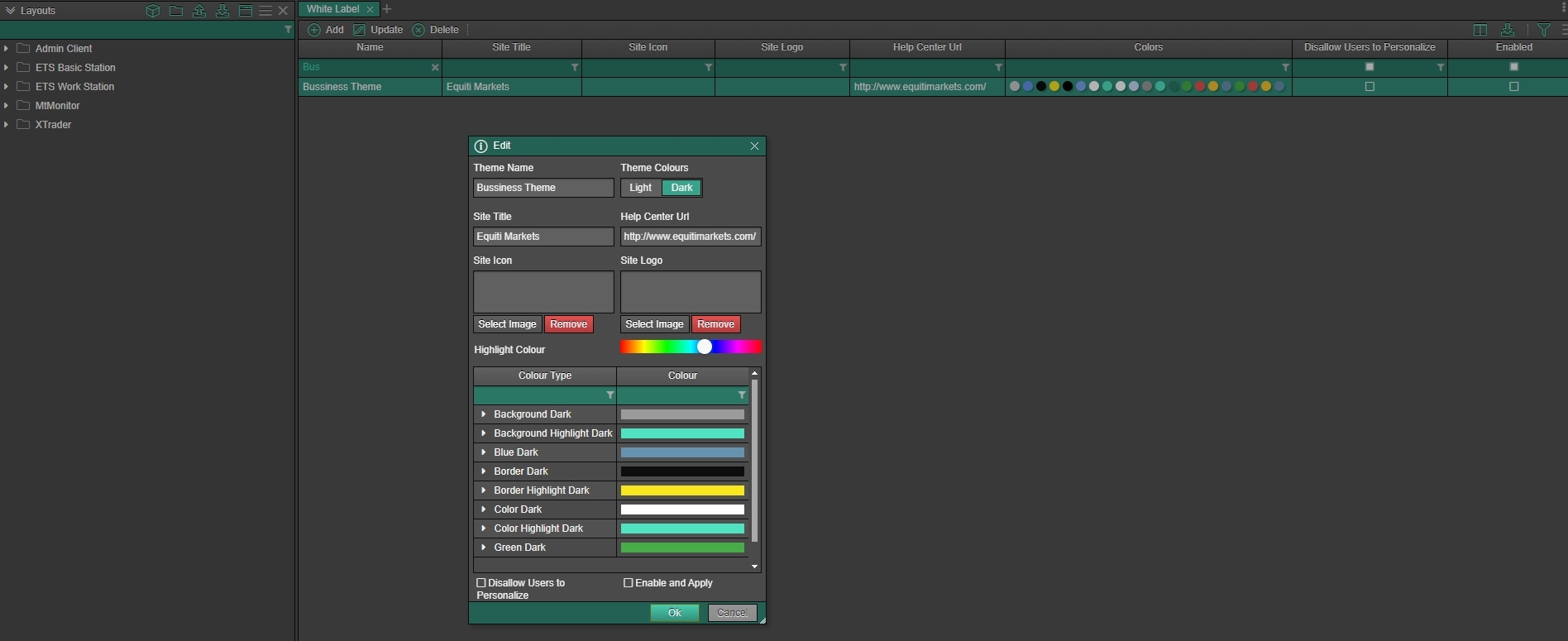
Note: Only one white label theme can be enabled at a time, multiple themes can’t be enabled for at the same time.