MT4 White Label Tool Group Configuration
Click on the “Groups” button. A new window will appear, displaying all configured groups.
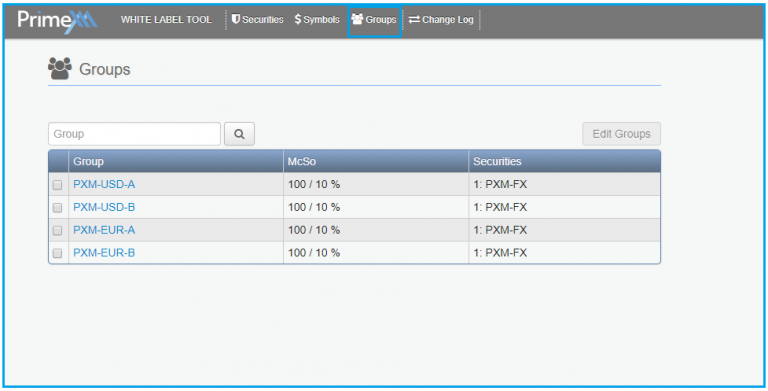
To access and modify settings on a specific group, simply double click on the group.
To edit multiple groups by checking the checkbox next to each group and then clicking on the “Edit Groups” button.
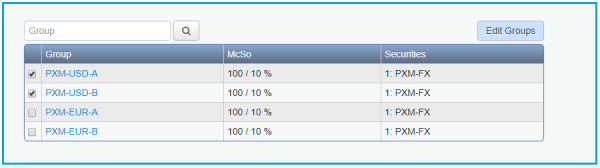
A new window will appear, displaying the following options.
-
Common – contains common attributes that can be modified;
-
Permissions – settings for group rights, use mails, changing swaps etc.
-
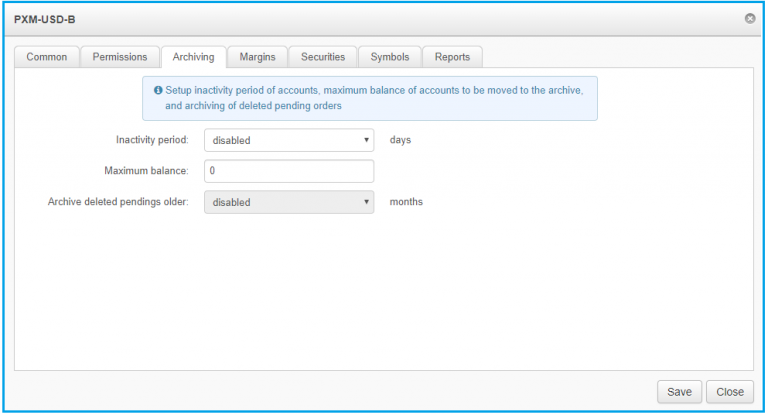
Archiving – allows you to setup account inactivity period, maximum account balance that can be archived, as well as archiving or deleting pending orders.
-
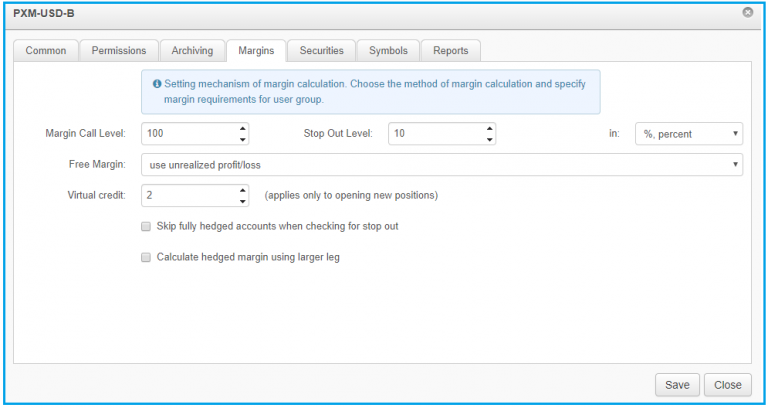
Margins – contains settings for margin calculation, and allows you to specify margin requirement for user group.
-
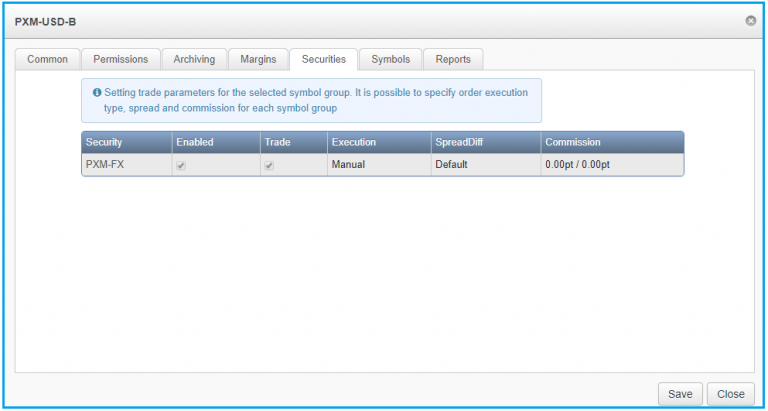
Securities – contains settings for the selected symbol group.
-
Symbols – contains setting trade parameters for the selected symbol group.
-
Reports – contains settings that allow you to define the report template directory and setup the mailing server.
Common
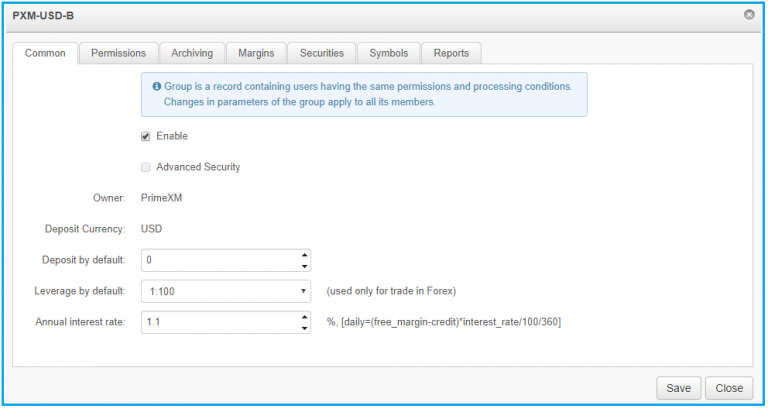
The “Common” tab contains common attributes that can be modified;
| Name of the field | Editable | Possible values | Explanation |
|---|---|---|---|
| Enable | YES | Manage groups by enabling or disabling them | |
| Name | NO | Unique user group name (15 characters max) | |
| Owner | NO | Owner/name of the company | |
| Deposit Currency | NO | Default Deposit Currency of the group (cannot be changed if account are located in the group) | |
| Deposit by Default | YES | Default Deposit assigned to accounts which are located in that specific group. | |
| Leverage by default | YES | Default leverage assigned to accounts which are located in that specific group (is taken into consideration on for Demo accounts created directly from MT4 terminal) | |
| Annual interest rate | YES | Interest rate calculated taking into account the free margin |
Permissions
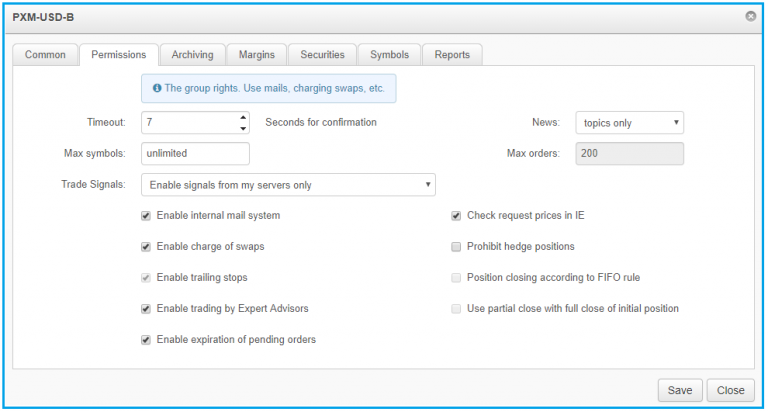
The “Permissions” tab contains settings for group rights, use mails, changing swaps etc.
| Name of the field | Editable | Possible values | Explanation |
|---|---|---|---|
| Timeout | YES | 7 seconds (recommended) | Time period to wait for a user’s response within which the user’s response can be waited for. The recommended value is 7 seconds |
| News | YES | News mode: - disable — disables news delivery - topics only — allows to show only topics; - full package — enables to deliver all news completely |
|
| Max Symbols | YES | 10, 30, 50, unlimited | Maximum number of symbols a client will be allowed to operate. |
| Max Orders | NO | 10, 30, 50, unlimited | Maximum amount of open/pending positions an account within this group can have |
| Internal mail system | YES | Enable/disable | Allow or restrict client access to internal mail |
| Change of swaps | YES | Enable/disable | Charge swaps and interest for an account's free margin |
| Trailing stops | NO | Enable/disable | Use trailing stops |
| Trading by Expert Advisor | YES | Enable/disable | Trade using an EA |
| Expiration of pending orders | YES | Enable/disable | Allow/Prohibit expiration of pending orders |
| Check request prices on IE | YES | Enable/disable | Check if symbol requested from clients which are Instant Execution are streamed by the feeder |
| Prohibit hedge positions | YES | Enable/disable | Prohibits accounts to have opposite open positions at any given time |
| Position closing according to FIFO rule | NO | Allows/ Prohibits positions on each symbol to be closed based on the order which they have been opened. | |
| Use partial close with full close initial position | NO | Partially closing a position closes the remaining part of the order: - Disable: and opens another order with the new volume at the same price. - Enable: and opens another order with the new volume at a current price. |
|
| Enable trade signals | YES | Allow/Prohibit the “Signals” service to be used in the client terminals. |
Archiving
The “Archiving” tab allows you to setup account inactivity period, maximum account balance that can be archived, as well as archiving or deleting pending orders.
Margins
The “Margins” tab contains settings for margin calculation, and allows you to specify margin requirement for user group.
| Name of the field | Editable | Possible values | Explanation |
|---|---|---|---|
| Margin Call Level | YES | If the margin reaches the margin call level, a warning will appear in the client terminal (Margin Call window) | |
| Stop Out Level | YES | If margin reaches the stop out level then positions will be closed starting from the least profitable one | |
| In: | YES | % percentage $ money |
If % then Margin call = Equity / Margin * 100 % If $ then Margin call = Equity |
| Free Margin | YES | Free margin calculation taking into account profit and losses of currently open positions. - do not use unrealized profit: does not take open position into - use unrealized profit/loss: take into consideration both the profit and loss - use unrealized profit: take into consideration only the profit - use unrealized loss: take into consideration only the loss |
|
| Virtual Credit | YES | Used by traders if cash resources are not sufficient. Withdrawing money from an account or calculation the margin call level will not take into consideration the virtual credit. | |
| Skip fully hedged accounts when checking for stop out | YES | Enable/disable | Allows/Prohibits accounts with zero margin requirements to be skipped when checking for stop out. If this option is disabled, accounts with completely hedged positions, and negative equity will get into stop out. |
| Calculate hedged margin using larger leg | YES | Enable/disable | Calculate margin using larger positions. Eg. two hedging positions of one symbol with different volumes, sell 1.0 EURUSD and buy 2.0 EURUSD, then the total margin will be equal to the margin of the larger position buy 2.0 EURUSD. |
Securities
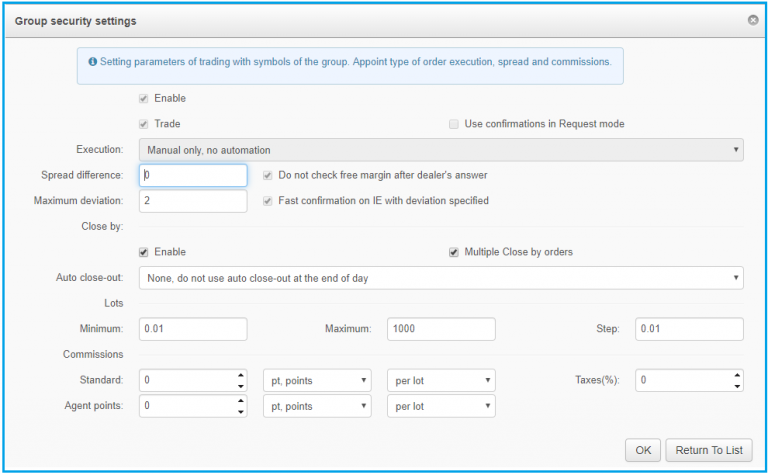
The “Securities” tab contains settings for the selected symbol group.
| Name of the field | Editable | Possible values | Explanation |
|---|---|---|---|
| Type | YES | Name of security enabled on the group | |
| Enable | YES | Enable/disable | Enable or disable the security on a group |
| Trade | YES | Enable/disable | Enable or disable the ability to trade on symbols within the security which is enabled on a group |
| Execution | YES | Execution mode of the orders - Manual only, without any automation: orders are executed via dealer; this mode is supported by the PrimeXM Bridge; - Automatic only: orders are executed automatically; this mode is supported by the PrimeXM Bridge; - Manual, but automatic if no dealers online: orders are manually executed only if the dealer is activity. |
|
| Spread Difference (in point) | YES | Spread difference (markup) applied on group level | |
| Maximum deviation (in point) | YES | Maximum allowed deviation from the current price which an order (instant execution) can be executed. If order is requested on a price which exceeds the specified deviation then the request will be declined leading to the “Requote” message | |
| Close By | YES | Enable/disable | Allow/ Prohibit closing of two opposite orders on the same instrument. The difference between these trades will be re-calculated |
| Multiple close by orders | YES | Close all overlapping orders on the same instrument at the same time. . The difference between these trades will be re-calculated | |
| Auto close out | YES | Closing automatically all counter positions at the end of day - None, do not use auto close-out at the end of day: will not close the counter positions at the end of a day - HIHI, highest sell against highest buys: close sell position with the highest profit with a buy position of the highest profit - LOLO, lowest sells against lowest buys: close sell position with the lowest profit with a buy position of the lowest profit - HILO, highest sells against lowest buys: close sell position with the highest profit with a buy position of the lowest - LOHI, lowest sells against highest buys: close sell position with the lowest profit with a buy position of the highest - FIFO, first bought/sold against first sold/bought: close the earliest buy/sell position by the earliest sell/buy position - LIFO, last bought/sold against first sold/bought — close the latest buy/sell position by the earliest sell/buy position; - Intraday followed by FIFO: close the earliest buy/sell position by the earliest sell/buy position after searching within the current day for the position to be closed by. |
|
| Minimum lots | YES | Minimum allowed amount of a lot | |
| Maximum lots | YES | Maximum allowed amount of a lot | |
| Step Size | YES | Changing step size | |
| Standard Commission | YES | pt/lot pt/deal $/lot $/deal %/lot %/deal |
Commission applied for an order or a lot in the deposit currency of the group in the currency of the group deposit, in points, or in percentage; for an operation or for a lot); |
| Agent point Commission | YES | pt/lot pt/deal $/lot $/deal |
Commission applied in the IB agent’s account either in points or the deposit currency of the group |
Symbols
The “Symbols” contains setting trade parameters for the selected symbol group.
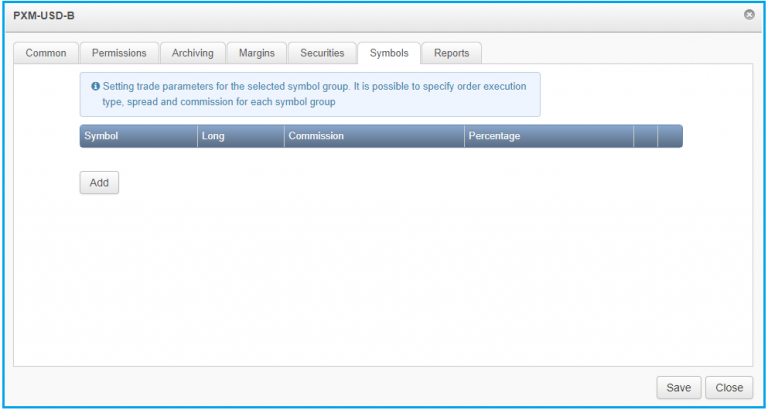
To change the setting of a symbol, such as the long and short swap value or the commission and the percentage, click the Add button. This will open a new popup window.
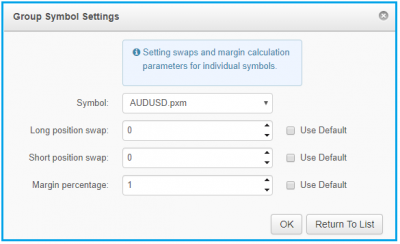
| Name of the field | Editable | Possible values | Explanation |
|---|---|---|---|
| Symbol | YES | Currency pair to be altered | |
| Long position swap | YES | Specify a different long position value for the selected currency pair applied only on the specific group. | |
| Short position swap | YES | Specify a different short position value for the selected currency pair applied only on the specific group. | |
| Margin Percentage | YES | Specify a different value of the margin percentage for the selected symbol which will only be applied on the specific group. |
Reports
The “Reports” tab contains settings that allow you to define the report template directory and setup the mailing server.
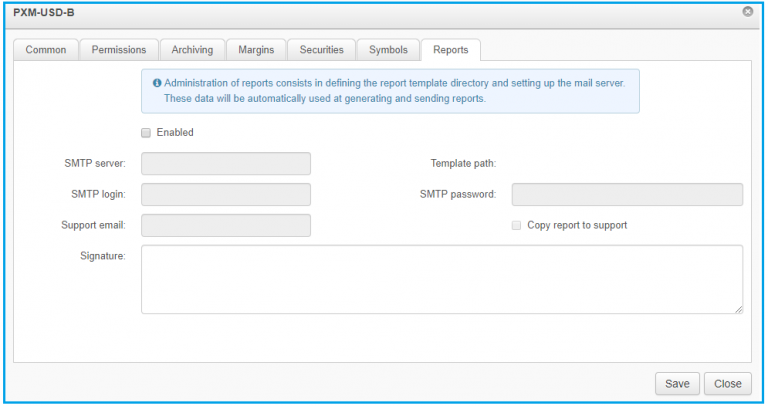
| Name of the field | Editable | Possible values | Explanation |
|---|---|---|---|
| Enable | YES | Enable/Disable | Allow/Prohibit generation of daily reports |
| SMTP Server | YES | Mail server address from which the reports will be sent out to clients | |
| Template path | Empty by default | Directory of the template used to generate the daily reports | |
| SMTP login | YES | Login to initiate the delivery of the reports | |
| SMTP Password | YES | Password to initiate the delivery of the reports via the SMTP server | |
| Support Email | YES | Set in the outgoing reports | |
| Copy reports to support | YES | Send copies of the reports to the support centre | |
| Signature | YES | Signature of the company |