PrimeXM MT4 Feeder
The PrimeXM MT4 Feeder receives price streams from XCore and publishes them to the MT4 server. XCore prepares these streams from liquidity provider quotes.
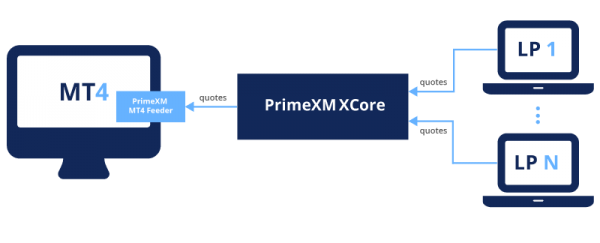
An MT4 server can run multiple Feeder instances. Each MT4 server requires its own Feeder deployment; one instance cannot serve multiple servers.
How to install the MT4 Feeder
This video provides a detailed guide on how to install the PrimeXM MT4 Feeder on MT4 Server.
video=907809614
How to update the MT4 Feeder
This video illustrates the process of updating the PrimeXM MT4 Feeder.
video=898167244
How to uninstall the MT4 Feeder
This video outlines the process for uninstalling the PrimeXM MT4 Feeder.
video=898179324
Setup/Update
Installation Procedure
Prerequisites
Provide PrimeXM Support with the DNS names or IP addresses of the primary and backup MT4 servers to prepare the Feeder license.
Obtain the following files before installation:
- PrimeXM Feeder executable: downloaded from the Download and Change Log page.
- PrimeXM Feeder license:
primexm_feeder.lic, supplied by PrimeXM Support.
Installation Procedure
- Confirm that the executable and license have the same base filename:
primexm_feeder.feedandprimexm_feeder.lic. A mismatch prevents the Feeder from loading. - In Windows Services, stop MetaTrader 4 Server.
- Copy both files to the MT4 server's
datafeeddirectory, for exampleD:\MetaTrader4\datafeed. - Start MetaTrader 4 Server.
- If a failover or backup server is used, copy the executable and corresponding license to its
datafeeddirectory as well.
Configuration Procedure
- Sign in to MT4 Administrator and open DataFeed.
- Right-click and select Add.
- Select the installed
primexm_feeder.feedfrom the file list. - Set the data feed name if required.
- Click OK to create the entry.
Note:
- Server, Login, and Password are populated automatically. Do not change these values.
- Set the Sleep for timeout to the recommended value of 5 seconds to reduce the delay before reconnection.
- Creating or configuring the data feed entry does not require an MT4 server restart. Installing or replacing the executable requires the service restart described in the corresponding procedure.
Update Procedure
- In MT4 Administrator, open DataFeed and disable the PrimeXM Feeder entry.
- In Windows Services, stop MetaTrader 4 Server.
- Copy the updated
primexm_feeder.feedand, if supplied,primexm_feeder.licto the installeddatafeeddirectory, for exampleD:\MetaTrader4\datafeed. - Retain the installed base filename and confirm that the
.feedand.licfilenames match. - Start MetaTrader 4 Server.
- In MT4 Administrator, open DataFeed and re-enable the Feeder entry.
Note:
- A filename mismatch between
primexm_feeder.feedandprimexm_feeder.licprevents the Feeder from loading. - MT4 WatchDog synchronizes the
.feedexecutable from the primary server to the failover server. - If the license is updated, manually copy the corresponding
.licfile to the failover or backup server'sdatafeeddirectory.
Uninstall Procedure
- In MT4 Administrator, open DataFeed, right-click the PrimeXM Feeder entry, and select Delete.
- In Windows Services, stop MetaTrader 4 Server.
- Open the MT4 server's
datafeeddirectory, for exampleD:\MetaTrader4\datafeed. - Move
primexm_feeder.feed,primexm_feeder.lic, and theprimexm_feederfolder outsidedatafeed, or delete them. - Start MetaTrader 4 Server.
- On the failover or backup server, remove
primexm_feeder.licfromdatafeed. MT4 WatchDog removes the corresponding.feedfile automatically.
Note: To stop using the Feeder permanently, uninstall it completely. Disabling the entry is a temporary step in the update procedure, not an uninstall.
Connectivity Verification Procedure
Open the Feeder log for the required date, for example D:\MetaTrader4\datafeed\primexm_feeder\YYYYMMDD.log.
After installation or an MT4 server restart, check for these messages in order:
-
Connection attempt started:
[INFO] connecting: host=xcorename.primexm.com:port -
Network connection established:
[INFO] connected: host=xcorename.primexm.com:port -
Access to the XCore session granted:
[INFO] access granted: host=xcorename.primexm.com:port
A failed connection attempt is recorded in the Feeder log as:
[INFO] connection failed: host=xcorename.primexm.com:port
Note:
- The Feeder attempts to connect only during the intervals configured on the Time tab in MT4 Administrator.
- To verify connectivity outside those intervals, such as during a weekend, temporarily adjust the configured intervals, check the Feeder log, and restore the original schedule after the check.