Alerts

The Alerts module allows clients to set up simple alerts based on ERROR/WARN messages produced by the XCore and sent to their side. This module allows clients to configure text or pattern-based rules that match specific error codes or messages. They can then choose a rule type, such as email, and provide a list of email addresses to receive notifications. Alerts has the following attributes:
| attributes | description |
|---|---|
| rule | Rules based on text or patterns that match specific error codes or messages. These rules allow you to define conditions under which an alert is triggered, based on the content of the message or certain patterns. Types of rules: Text-based rules : Simple text strings that look for matches in the message or error code. * : To match messages containing specific fragments, where * replaces any number of characters! : To exclude specific messages or patterns. Regular expression : Regex definition, should start and end with char ‘/’ |
| type | Through which channel the alert will be sent. (currently the only type supported is Email). |
| values | The value associated with the type. |
| enable | Enable/Disables the rule. |
List of Possible Rules
Below is a list of possible keywords that can be used as rules to trigger alert notifications.
Each rule is accompanied by a brief description to help identify specific events or issues requiring attention.
| Rule | Description |
|---|---|
| DISCONNECTED | Indicates disconnections in taker/maker streams or trade sessions. |
| heartbeat timeout | Disconnection indicator. |
| invalid logon limit reached | After ten consecutive incorrect logon attempts, the logon limit will be reached. |
| leg closed | Error on trade execution in the opened leg, usually happens when leg.fillsize is violating an XCore setting. |
| leg not found | Trade confirmations received from Provider side, for trades done via a different platform OR delayed trade confirmation. |
| margin check failed: symLimit | WARN message when AccountProfileSymLimit limit has been breached. |
| margin check failed: ccyBaseLimit | WARN message when AccountProfileCCYLimit limit has been breached. |
| margin check failed: ccyQuoteLimit | WARN message when AccountProfileCCYLimit limit has been breached. |
| MARGIN_LEVEL_1 | Margin Level 1 has been reached. |
| MARGIN_LEVEL_2 | Margin Level 2 has been reached. |
| MARGIN_LEVEL_3 | Margin Level 3 has been reached. |
| MARGIN_STOPOUT | Margin Stopout has been reached. |
| MAKER_QUOTE_DELAY | WARN message when there is a delay between Liquidity Provider send and XCore receive timestamps. |
| MAX_MARKUP_LIMIT | WARN message when Symbol.markup_max limit has been breached and printed once after an XCore restart. |
| MIN_MARKUP_LIMIT | WARN message when Symbol.markup_min limit has been breached and printed once after an XCore restart. |
| mtClient not found | Means order cannot be covered on a specified MT4 account because the account does not exist on MT4 Server. |
| mtSymbol not found | Indicates that the symbol does not exist on your MT4 Server and coverage trades for this symbol cannot be booked successfully. |
| MT5_SYMBOL_DIGITS | If the digits on MT5 are fewer than what XCore is streaming. |
| order_reject | Order Rejection (can be based on different reasons due to XCore configurations). |
| orderResponse pending | Potential Trade Issue – It is probably due to a delay in communication between the MT4 server and the XCore system. |
| PendingLeg | This means that the XCore did not receive any message trade execution message (that the order was filled, cancelled, or rejected) from the liquidity provider. |
| POOL_BACKUP | Backup LP has been activated if there are no valid quotes in the pool from primary LPs. |
| POOL_FILTER | Indicates the quotes filtration for symbol on liquidity pool level. |
| protocol violation | Protocol violation – Means that the provider sends a message that the XCore cannot recognize, and then the XCore terminates the connection with the LP. |
| PROVIDER_REJECT | Provider Rejection message. |
| received logout | Disconnection indicator. |
| slow consumer | Means that the connector is not getting price updates since they are not sending a Massquote acknowledgment. |
| SYMBOL_SIZE_UNIT | The executed sizes reported by a maker to the XCore are not multiples of Symbol.size_unit. |
| TRADE_COPY_FAILED | Indicates that System.trade_copy was unsuccessful in replicating the trades. |
| XCORE VERSION CHANGE | It is to notify once the XCore version is updated. |
| connector*disabled | This matches messages like “connector_account_setting disabled”, where * allows any characters between the keywords “connector” and “disabled”. |
| !error | This rule will exclude messages containing the word “error”. |
| /account=\w+/ | The rule is wrapped between forward slashes / “account=\w+” is a regex pattern that matches strings where “account=” is followed by one or more word characters (letters, digits, or underscores). |
| !*reqID=-1*,*onWalletUpdate* | The rule indicates user account wallet updates. |
Warning: For the Alerts module to work properly the SMTP settings must be configured correctly.
SMTP
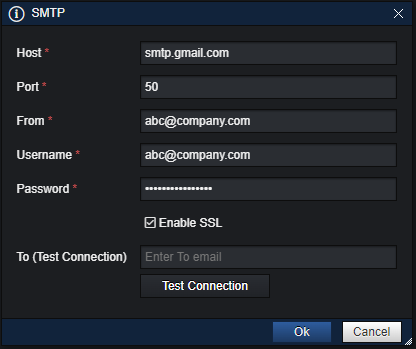
| Fields | Description |
|---|---|
| Host | Address of the SMTP server. This server will be used to send messages. The following format is used to specify it: [mail server address] . For example, ‘smtp.gmail.com’ |
| Port | The port that will be used. |
| From | The e-mail address used for sending messages from. In this field, the name and address of a mailbox on the same mail server should be used. |
| Username | The login used for authorisation on the mail server. Normally, it is a mailbox name, for example: ‘abc@company.com’ |
| Password | The authorization password (a password used to access the mailbox). |
| Enable SSL | If the provider of your email account supports SSL (Secure Sockets Layer, a security technology) for the outgoing (SMTP) mail server connect to the outgoing mail server using SSL. |
| To (Test Connection) | An e-mail address to send a test message using the specified settings, which allows the user to check their operability. It is important to test your SMTP connection using the ‘Test Connection’ functionality to ensure that all settings are correct. |
NOTE: Setting up SMTP is best handled and consulted with your in-house IT Team to ensure proper setup and functionality. You can use the “Test Connection” option to assist you in troubleshooting any potential issues.