MT4 White Label Tool Symbol Configuration
You can switch to Symbols by pressing on “Symbols” tab on the control bar.
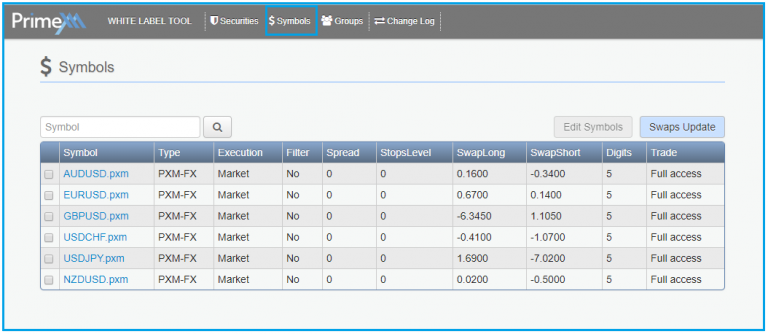
“Symbols”, allows you to modify all symbols settings provided by MT4. If you have more than one symbol, you can filter the list by typing a keyword and click the search button  .
.
To access and modify settings on a specific symbol, simply double click on the symbol.
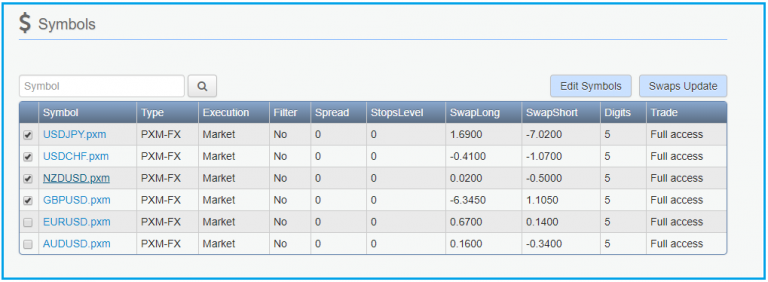
To edit multiple symbols by checking the checkbox next to each symbol and then clicking on the “Edit Symbols” button  .
.
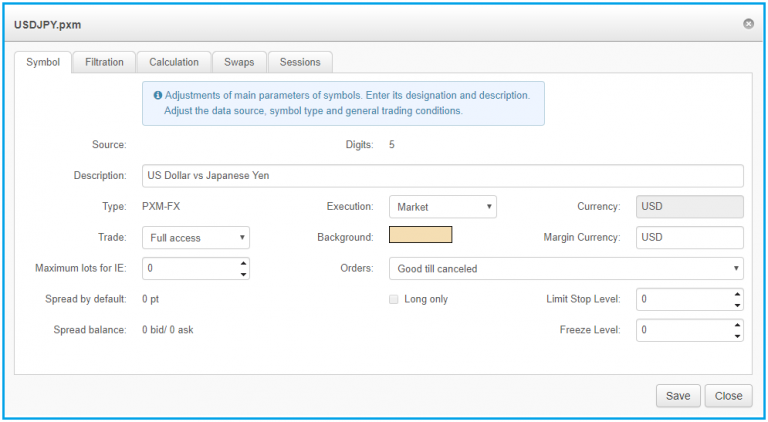
A new window will appear, displaying the following options.
- Symbol – main settings of the instrument;
- Filtration – filtration settings of the instrument ;
- Calculation – profit and margin calculation specification;
- Swaps – swaps settings specification form ;
- Sessions – quoting and trading sessions of the instrument.
Symbol
The “Symbol” tab contains basic settings for the symbol:
| Name of the field | Editable | Possible values | Explanation |
|---|---|---|---|
| Symbol | NO | Name of the symbol | |
| Source | NO | The source symbol for symbols quotes. Leaving it blank means that the source will be provided via Data feed. | |
| Description | YES | Limited to 64 symbols | Description of the symbol |
| Type | NO | Name of security in which symbol is located | |
| Execution | YES | [Request], [Instant], [Market] |
The way of execution of the trading operations: - Instant – no deviation from market price is accepted; - Market – execution “at-the-market” prices, any deviation from MT4 price acceptable. - Request – not supported by the Bridge. |
| Currency | YES | Base currency of the instrument, can be changed only if Profit calculation formula is not equal to ‘Forex’. | |
| Trade | YES | Full access, Close only, No |
Operation types allowed for the symbol: - Full access – opening/closing of trades enabled; - Close only – only closing enabled; - No – trading of this symbol disabled. |
| Background | YES | Background color of the symbol | |
| Margin currency* | YES | Currency of margin calculation | |
| Maximum Lots for IE | YES | Max lot size in the “Instant” mode | |
| Orders | YES | Types of allowed orders: “Good Till Today including SL/TP” — daily orders, all SL and TP levels of orders and pending orders are deleted at the trading day change; “Good Till Cancelled” — hold pending orders at the trading day change; “Good Till Today excluding SL/TP” — daily orders, at the trading day change, the SL and TP levels are kept, only pending orders are deleted. |
|
| Spread by default | NO | Fixed spread in points | |
| Long only | NO | Enable only long (buy) orders | |
| Limit Stop Level | YES | Shows the price range (in points) from the current market price within which Stop Loss or Take Profit values can be set | |
| Spread balance | NO | The balance of fixed spread | |
| Freeze Level | YES | Level in points till market price at which modifying, deleting or closing positions is prohibited |
Filtration
The “Filtration” tab contains the filtration settings for the instrument.
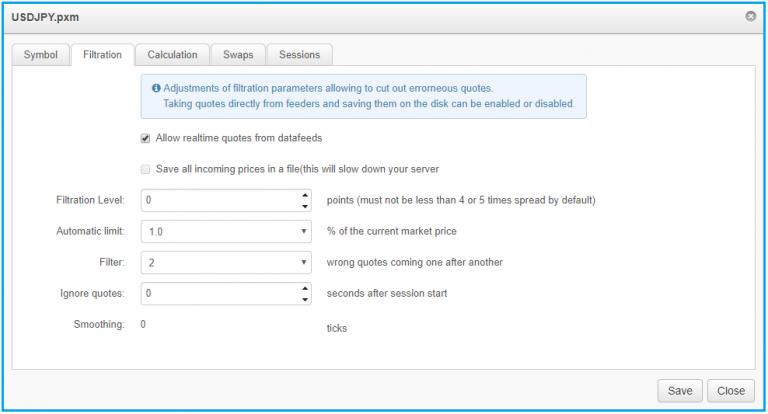
| Name of the field | Edit | Possible values | Explanation |
|---|---|---|---|
| Allow real-time Quotes from Datafeeds | YES | Enable/disable | IMPORTANT! Disabling this setting will prevent price updates from PrimeXM datafeed. |
| Save all incoming prices in a file | NO | Enabling/disabling to save tick prices into the file. | |
| Filtration Level is | YES | The level of filtration of incoming quotes in points: 0 – disable filtration; |
|
| Automatic Limit | YES | [No],[0.1],[0.5], [1],[3],5],[10], [15],[20] |
Price range in points within which all incoming quotes which have not exceed this value comparing to the previous price will be filtered. “No” option will disable automatic filtration. |
| Filter | YES | [1],[2],[3],[4],[5], [6],[7],[8],[9],[10] |
The amount of quotes needed to confirm a new level (disabling filtering). |
| Ignore quotes | YES | Time in seconds to ignore quotes after session start | |
| Smoothing | NO | The parameter of price smoothing in ticks. |
Calculation
The “Calculation” tab contains the profit and margin calculation specifications.
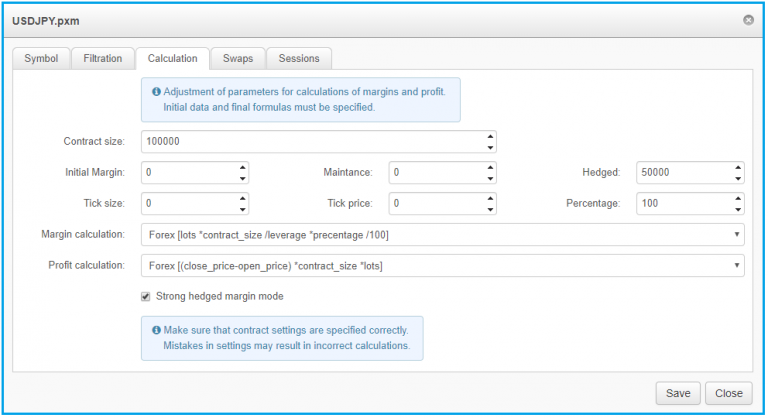
| Name of the field | Edit | Possible values | Explanation |
|---|---|---|---|
| Contract size | YES | Symbol contract size in base currency | |
| Initial margin | YES | Margin which will be reserved at trade opening | |
| Maintenance | YES | A set minimum margin per outstanding futures contract that a customer must maintain in his margin account. | |
| Hedged | YES | Margin which should be reserved after opening “hedged” position. For ‘Forex’ margin calculation formula: - 0 – hedged positions will have ‘0’ margin. For example, 1 lot sell EURUSD and 1 lot buy EURUSD will result in ‘0’ margin; - 50% of contract size or 50 000 – means that will be reserved half of contract. For example, 1 lot sell EURUSD and 1 lot buy EURUSD will result in 1 lot margin; - 100% of contract size 100 000 – means that “hedged” margin will be ignored. For example, 1 lot sell EURUSD and 1 lot buy EURUSD will result in 2 lots margin; |
|
| Tick size | YES | The size of a tick (tick is the smallest move in price). If it is equal to ‘0’, then it is calculated as 1-digits. For example, if EURUSD symbols has 5 digits then tick size is 1-5= 0.00001 | |
| Tick price | YES | The price of a tick (the profit of the smallest move in price). If it is equal to ‘0’, then it can be calculated from Profit calculation formula assuming that it was the smallest move in price possible. | |
| Percentage | YES | Margin multiplicator in %. | |
| Profit calculation | YES | [Forex], [CFD], [Futures] |
Profit calculation formula |
| Margin calculation | YES | [Forex], [CFD], [Futures], [CDS-Index] |
Margin calculation formula |
| Strong hedged margin mode | YES | Enable/disable | IMPORTANT! PrimeXM advice to keep this option enabled. This is a check of margin requirements when opening a hedge position: - Disabled – a hedge position can only be opened if free margin remains as non-negative after that or if margin requirements are reduced after the hedge position has been opened; - Enabled – opening of a hedge position is only permitted if free margin remains non-negative after that. |
Swaps
The “Swaps” tab contains swap settings specifications.
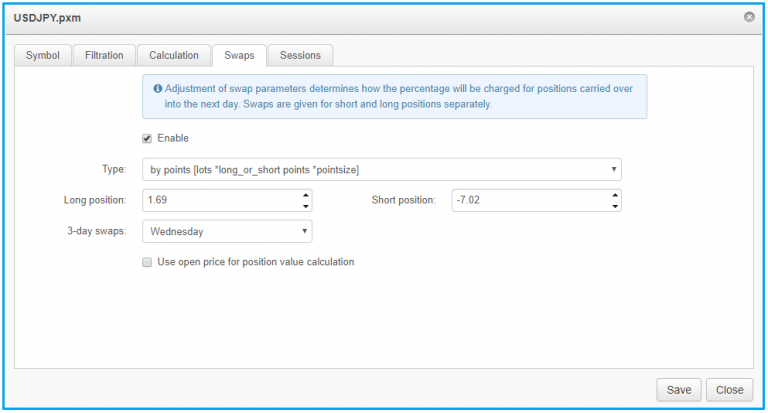
| Name of the field | Edit | Possible values | Explanation |
|---|---|---|---|
| Enable | YES | Enable/disable charging of swaps for the symbol | |
| Type | YES | [by points], [by money] [by interest], [by money in margin currency] |
Swaps calculation formula |
| 3-days swaps | YES | The day when triple swap should be applied | |
| Long & Short positions | YES | Swap values for long (buy) and short (sell) orders. IMPORTANT! Negative swap values will generate loss for trader; positive swap values will general profit for trader. |
|
| Use open price for position value calculation | YES | Enable/disable | IMPORTANT! PrimeXM doesn’t recommend enabling this option Enabling this option – if swap calculation formula is set to “by interest”, swap profit will be calculated using opening price of the trade (by default is used current price at roll-over time). |
| Charge variation margin on rollover | YES | Enable/disable | IMPORTANT! PrimeXM doesn’t recommend enabling this option Enabling this option will lead to situation at roll-over then swap profit is recalculated using the current prices. After that the financial result of a position (floating profit + swap) is added or deducted from a client’s account in a separate balance operation. In the result the position profit and swap are cleared, and the position open price is set equal to the current market price. |
Update Swaps from text file
We have integrated the option to update swaps from a .text file. To do so, the specification of the swap values should be in a particular format.
To update swaps from file, please follow the steps outlined below:
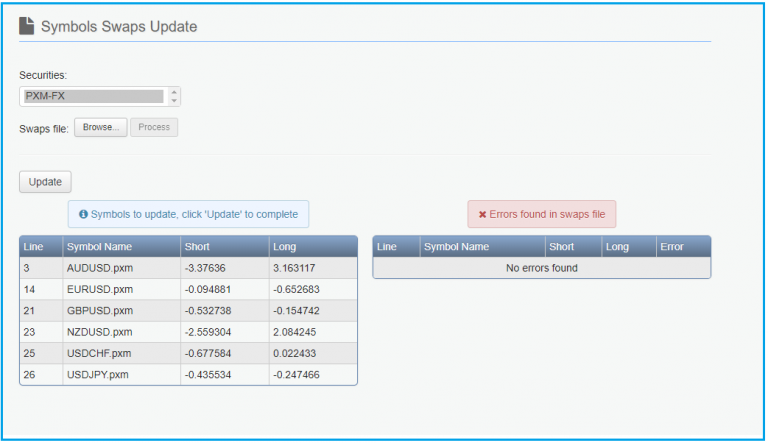
- Click on the “Swaps update” button from the Symbols list view
- A new window will appear, listing the securities available. Select one or several securities from the list (use CTRL + SHIFT), click on the “Browse…” button, find and attach the swaps.txt file which contains all the swap values to be imported.
- Once the file is loaded, click on the “Process” button
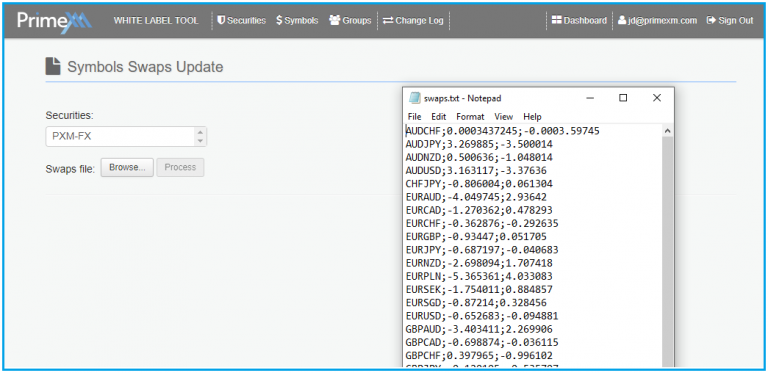
4. Make sure you click on the “Update” button to complete the update procedure:
Swaps File Format
Swaps values contained in the swaps.txt file should conform to the format below, otherwise incorrect swap values will not be updated.
- <Symbol name (without extension)>;<Long swap value (max 6 digits)>;<Short swap value (max 6 digits)>
Example:
AUDCAD;1.517189;-3.430008
AUDCHF;1.815369;-4.012921
AUDJPY;1.370391;-3.407946
Sessions
The “Sessions” tab allows you to specify the times of when symbol(s) will receive pricing and when to enable trading.
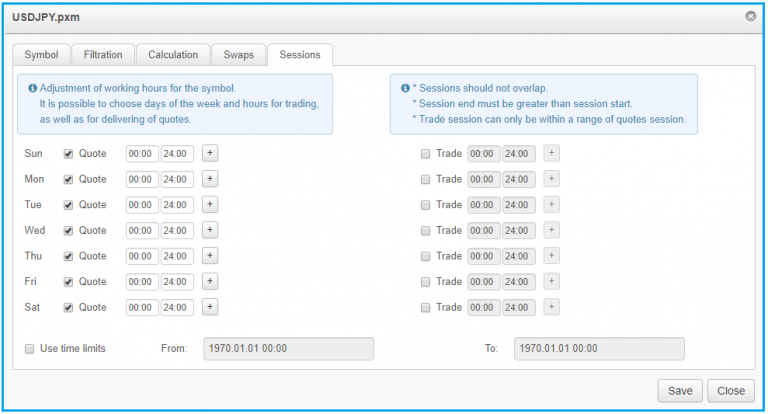
Note: PrimeXM servers are operating in GMT+0 time zone, therefore, the Market opening and closing times are Sunday at 21:00 GMT and Friday at 21:00 GMT respectively.
Note: If the MT4 symbol sessions are configured in a way that there is a gap on the trading sessions but not on the pricing session, then, this will restrict trading from the client terminals. However, any limit/stop orders already pending on the MT4, might be triggered if the limits are reached and will get executed, regardless of the gap configured on the MT4 Symbol Trading session.